GO BACK!

The PacketColors

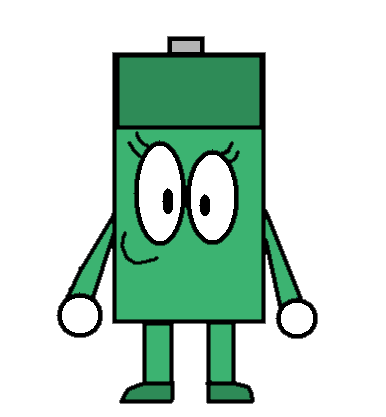
Since around 2000, FYI-Net developed their own MSAgent character, PM Green. In the late 2010s, people are making clones of him, most famous example being PM Red.

Click on one of the images to download one of them, including FYI versions of already-made PacketColors that doesn't have one yet.


Older Versions.

How to make your own PM Green clone?

These clones have been around since the late 2010s. People used MS Paint to make their own PM Green clones, the most famous example being PM Red, the red battery whose a rival to PM Green. As of now, some people are making clones of him by decompiling PM Green and changing the color table. To make your own PacketColor, without using generic MS Paint bases that is used so many times over the past years, you'll need Paint.NET, MSAgent Decompiler, Microsoft Agent Character Editor, Agent Viewer, and the PM Green character.

Step 1

Download the character and software. If you already have all of them, this step can be skipped. You can get PM Green from here or TMAFE. Next, you need Paint.NET at getpaint.net. You also need MACE, MSAgent Decompiler, and Agent Viewer. You can get MACE from here. Click on 'CLICK HERE FOR MORE SOFTWARE DOWNLOADS!' to get the decompiler and the viewer.

Step 2

Open the decompiler, select 'PM_GREEN.ACS', and click 'Open', and it decompiles it sucessfully.

Step 3

Open its decompiled ACD file, and go to 'Animations'. You can see the color table location.

Step 4

Open 'ColorTable.bmp' in Paint.NET, click 'Adjustments' and click 'Hue / Saturation'. Slide the sliders in the hue, as the hue is the colors. Click 'OK' if done. Click the floppy icon or click 'File' and click 'Save'. If the BMP didn't work, go back to the program, click 'File', click 'Save As...', save the file as GIF, and click 'OK'. Ignore the pop-up settings, and click 'OK' anyways.

Step 5

On MACE, in 'Animations', click on a square with '...' to change the color table, open the GIF file you saved, and check the animation frames to see your PacketColor.

Step 6

In 'Character', you can change the background color of the word balloon and the font size to 10 in the 'Word Balloon' tab. You can also change the voice in the 'Voice' tab. In the 'Properties' tab. You can change the character's name, 'PM_Red' for example. It's optional, but you can also change the description, 'For... Whatever Use, Pretty Much!' for example. Don't forget to click 'New GUID', you don't want to break your MASH scripts containing PM Green and your PacketColor, don't you.

Step 7

Once you're done, click 'File', click 'Build Character...', choose an ACS name, 'PM_RED_FYI.ACS' for example, then click 'OK', and BAM, you got your PacketColor! Locate your ACS file and open it. Enjoy messing around with yout PacketColor!